Setting up MFA (Multi-Factor Authentication)
This article describes how to set up MFA on a mobile device.
We recommend using one of the following Authenticator apps:
- Google Authenticator
- Microsoft Authenticator
- Authy
This article assumes you are going to use Google Authenticator.
tip
The process will be very similar for other Authenticator apps.
Prerequisites
- A mobile device (iOS or Android)
- Internet access
- A QR code provided by Volo
Step 1: Download Google Authenticator
- Open the app store on your mobile device:
- Android: Google Play Store
- iOS: Apple App Store
- Search for Google Authenticator.
- Download and install the app published by Google LLC.
- Open the app once installation is complete.
Step 2: Open Google Authenticator
- Launch the Google Authenticator app.
- Complete any initial prompts (such as permissions or brief introduction screens).
- The app will display an option to add an account.
Step 3: Add a Volo Account by Scanning a QR Code
- On Volo, ensure Stage 2 of the account migration process is displaying a QR code.
- On your mobile device:
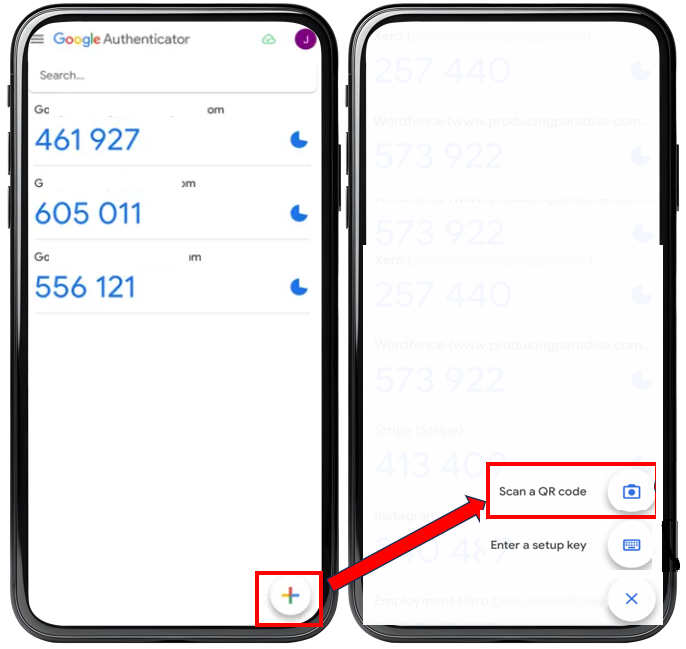
- Tap Add account or the “+” icon in Google Authenticator.
- Select Scan a QR code.
- Use your phone’s camera to scan the QR code shown on the screen.
 .
.Step 4: Retrieve the Six-Digit Verification Code
- After scanning the QR code, Google Authenticator will create an account for this Volo operator and generate a six-digit code.
- The code refreshes automatically every 30 seconds.
- Locate the entry corresponding to the account you just added.
- Enter the six-digit code in the relevant field on Volo.
caution
- The 6-digit code refreshes every 30 seconds.
- If the code expires, wait for a new one and try again.